
Sessions and account security
Your account
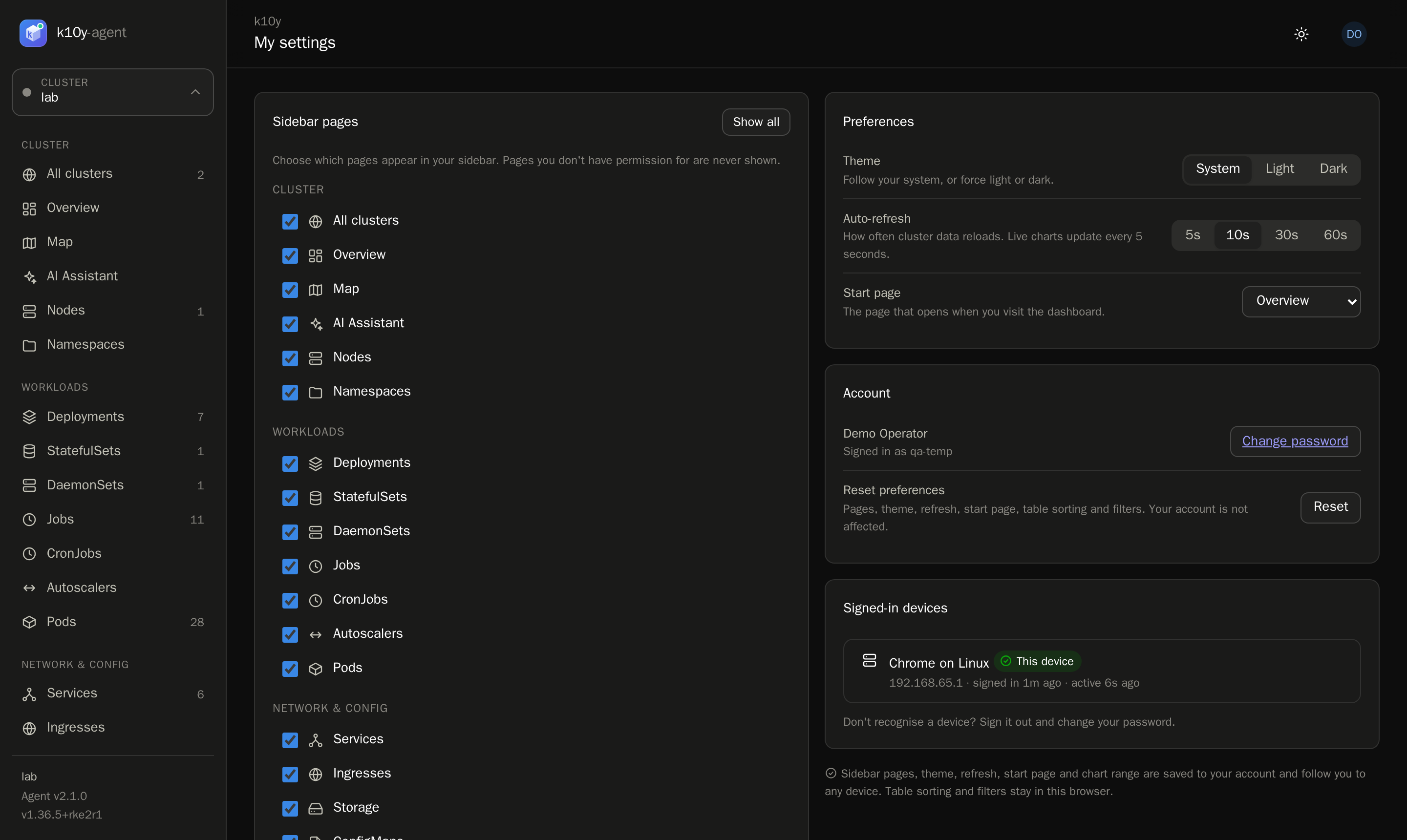
My settings (bottom of the sidebar) is personal:
- Sidebar pages: hide pages you don't use. You never see pages you lack permission for.
- Theme, auto-refresh interval and start page.
- Change password.
- Two-factor login (see below).
- Signed-in devices: every browser where you're signed in, with its IP address, when it signed in and when it was last active. Sign out one device, or Sign out all others.
Sidebar pages, theme, refresh, start page and chart range are saved to your account, so they follow you to every device. Table sorting and filters stay in each browser.
Passwords
- At least 8 characters, with letters plus numbers or symbols. The change-password page shows a strength meter and the rules as you type.
- Changing your password signs out every other session.
- After 5 failed sign-ins in 5 minutes for the same username and IP, sign-in pauses for a few minutes.
Two-factor login
Two-factor login adds a 6-digit code from an authenticator app (Google Authenticator, Microsoft Authenticator, 1Password, Authy…) to every sign-in.
- My settings → Two-factor login → Set up, and confirm your password.
- Scan the QR code with the app (or type the key), then enter the code it shows and Turn on.
- Save the 10 recovery codes: each one signs you in once if you lose your phone. They're shown only once; New recovery codes makes a fresh set (the old ones stop working).
At sign-in you enter your password, then the code. A code works only once. Turn off needs your password, unless two-factor login is required for you.
Require it (needs settings.manage): System settings → Sign-in security → Require two-factor login for Admins (people with a hub-wide permission to manage users, settings, clusters or HAProxy instances) or Everyone. Those who haven't set it up are asked to right after signing in, and can't do anything else until they have. You must have it on yourself before you can require it, so you can't lock yourself out.
Lost phone and no recovery codes? An admin opens the user in Administration → Users and clicks Reset two-factor. If it's required, the user sets it up again at the next sign-in. Every enrolment, reset and use of a recovery code is in the activity log.
Single sign-on
People can sign in with Google, Microsoft Entra ID, Keycloak, Okta, Authentik or any OpenID Connect provider: their sign-in page shows Sign in with … buttons.
Set it up in System settings → Single sign-on → Add provider (needs settings.manage):
- At the provider, create an app (a "client") of type web application. Register the redirect URL k10y shows, for example
https://k10y.example.com/api/hub/auth/sso/callback. SetK10Y_PUBLIC_URLon the hub if people reach it under another address. - In k10y, enter the issuer URL (e.g.
https://accounts.google.com,https://login.microsoftonline.com/<tenant>/v2.0,https://keycloak.example.com/realms/<realm>), the client ID and client secret. - Optionally map groups to roles: "members of
k8s-opsget Kubernetes operator on everything", "members oflb-adminsget HAProxy admin onlb-edge-1". Groups come from thegroupsclaim (or another, e.g.realm_access.rolesfor Keycloak roles).
How it works:
- k10y uses the authorization code flow with PKCE and checks the ID token's signature, issuer, audience, expiry and nonce.
- A person's k10y account is found by their provider ID, then by username; with Create k10y accounts at first sign-in, new people get an account automatically (otherwise an admin adds them first).
- At every sign-in, the roles from group mappings are replaced by what the person's groups give today. Roles you give by hand in Users stay. Users from single sign-on are marked SSO in the user list.
- Two-factor login is left to the provider, so k10y's own two-factor requirement doesn't apply to these users.
- Password sign-in still works for local accounts (keep at least one admin with a password).
API tokens
Scripts, CI pipelines and the CLI can use the hub's API with a personal API token instead of a password: My settings → API tokens → New token.
- A token acts as you. Limit to a role to give it less: with Kubernetes viewer it can only read, whatever you can do yourself.
- Choose when it expires (30 days, 90 days, 1 year or never). It's shown once; k10y keeps only a hash.
- Send it as
Authorization: Bearer k10y_…to/api/hub/…. Tokens can't create tokens or change your account settings. - Everything a token does is in the activity log under your name, with the token's name. The list shows when each token was last used and from where; Revoke stops it at once. Admins see and can revoke anyone's tokens in Users.
For admins
On Administration → Users you see each user's last activity and number of active sessions:
- Sign out ends every session of that user.
- Disable blocks the account and ends its sessions at once. Enable restores it.
- Opening a user shows their signed-in devices and whether they use two-factor login (Reset two-factor for a lost phone). The list marks them with 2FA.
Sessions
Sessions last 12 hours of inactivity (set K10Y_SESSION_HOURS to change it) and extend while you use k10y. The browser cookie is HttpOnly, Secure and SameSite=Strict, and the server only stores a hash of it.